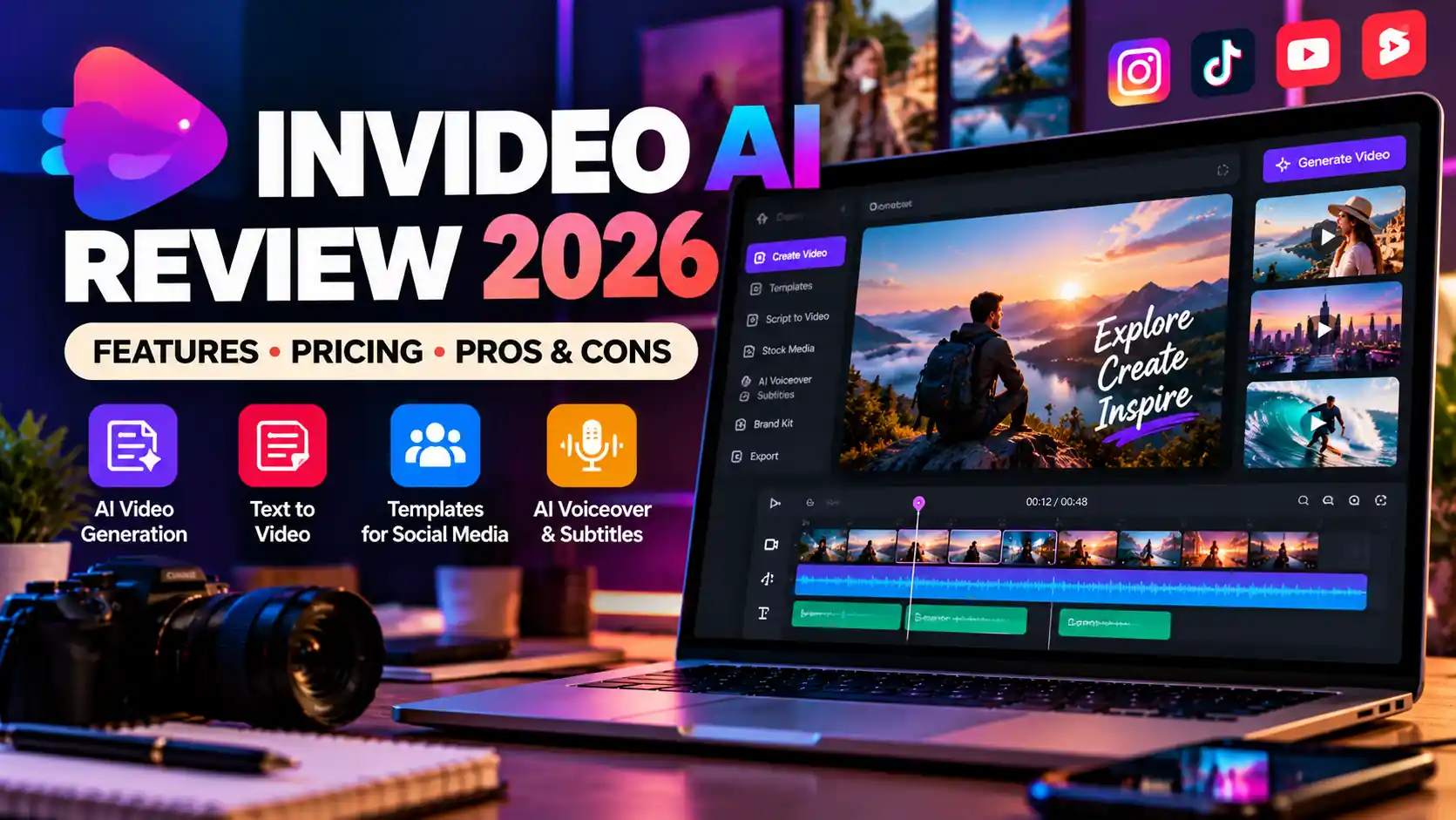
Is InVideo AI worth using in 2026? InVideo has evolved into an AI video creation platform that can help turn a brief or prompt into a script, visuals, voiceover, music, and an editable video. It also offers a timeline editor for manual finishing. Whether it is worth paying for depends on the type of videos you make, how much control you need, and how quickly you use up AI credits.
In this InVideo AI review, we look at its main features, current pricing structure, advantages, limitations, ideal users, and alternatives. Product features and prices can change, so check the official pages linked below before subscribing.
InVideo AI at a Glance
| Item | Summary |
|---|---|
| Main use | Prompt-led AI video creation, AI-generated visuals, narration, and editing |
| Best for | Marketers, creators, educators, small businesses, and social video workflows |
| Workflow | Describe the video, review the AI output, then refine scenes and timing |
| Free option | A limited free plan is described in the official help centre; quotas can change |
| Pricing model | Plans and AI credits; costs vary by model, duration, resolution, and task |
| Official website | invideo.io |
What Is InVideo AI?
InVideo AI is an online video creation platform that uses AI agents and models to help plan, generate, and edit videos. According to its official description, users can give it a video idea and details such as length, platform, and voiceover accent; the system can help write a script, add visuals, voiceover, subtitles, and music. Its AI filmmaking workflow is designed as an iterative process, so users can refine the result through follow-up instructions rather than treating the first generation as final.
It is useful to distinguish AI generation from ordinary editing. AI generation and agent tasks use credits, while the official help centre says manual timeline editing—such as trimming, splitting, moving, and arranging clips—can be done without AI credits. See the official AI video generator page and AI filmmaking guide.
Key InVideo AI Features
1. Prompt-to-video creation
Start with a subject, audience, desired duration, and platform. InVideo can help build a script and assemble a first cut with supporting visuals. This is especially useful when you have a clear idea but no finished footage or editing plan.
2. AI visuals and stock footage
The platform supports AI-generated images and video as well as stock media, depending on the model and workflow selected. That flexibility helps creators mix original-looking shots with supporting footage, but generated scenes should be checked for visual errors, continuity, and brand accuracy.
3. AI voiceovers and subtitles
Voiceover, captions, and music can reduce the number of separate tools needed for a basic explainer or social video. Always proofread subtitles, names, numbers, pronunciation, and timing before publishing.
4. Editing through prompts
InVideo describes a workflow where you can request changes such as removing a scene, changing an accent, or adding an intro. Prompt-based editing can save time on routine changes, although specific instructions and manual review are often necessary to get a precise result.
5. Timeline editor and manual control
When the AI first cut is close but not quite right, the timeline editor lets you refine the sequence. According to InVideo’s official FAQ, manual timeline editing is free and does not consume AI credits; AI-agent tasks and generated media do use credits. Read the official editor and credit FAQ.
6. Collaboration and storage
Plan features can include collaboration seats, storage, and access to different AI models. The exact allowances differ by subscription tier, so check the current plan comparison before choosing a package for a team.
InVideo AI Pricing in 2026
InVideo uses subscription plans and a credit system for AI work. The official pricing page displays different plan names, credit allowances, model access, and promotional annual rates. At the time checked for this review in October 2026, the page showed a Starter plan advertised at $10 per seat per month with annual billing and 400 credits per month; Plus at $30 per seat per month with annual billing and 2,000 credits; and Max at $75 per seat per month with annual billing and 5,000 credits. These are displayed promotional annual prices, not a guarantee of the price you will see: billing frequency, region, plan changes, and promotions can affect the checkout amount.
| Plan shown on official page | Displayed annual-billing rate | Credits shown | Who might consider it |
|---|---|---|---|
| Starter | $10/seat/month | 400/month | New creators testing a regular workflow |
| Plus | $30/seat/month | 2,000/month | Frequent creators needing broader model access |
| Max | $75/seat/month | 5,000/month | High-volume or advanced production workflows |
Important pricing notes: these are the displayed annual-billing rates found on the official pricing page, and plans can be updated. AI credit usage varies by model, duration, resolution, and generation settings. The official help centre says unused monthly plan credits do not roll over; purchased extra credits have separate validity rules. Check the official InVideo pricing page and plans and credits guide immediately before purchase.
Pros and Cons
| Pros | Cons |
|---|---|
| Can turn a brief into a structured first video | The first draft may contain generic visuals or awkward pacing |
| Voiceover, captions, visuals, and music in one workflow | AI generation and agent work consume credits |
| Prompt-based edits can speed up revisions | Precise changes can still require manual editing |
| Manual timeline editing offers more control | Model access and limits differ by plan |
| Useful for explainers, marketing, and social posts | Fact-checking, asset rights, and final quality control remain your responsibility |
Who Should Use InVideo AI?
- Content marketers: for producing explainers, campaign videos, and variations from a brief.
- Bloggers and affiliate marketers: for turning an article or product topic into a video summary, while ensuring claims remain accurate and affiliate relationships are disclosed.
- Small businesses: for basic promotional content when they lack a dedicated editing team.
- Educators: for structured topic explainers and narrated learning content.
- Social media creators: for drafts that can be refined into Reels, Shorts, and other vertical posts.
Who May Want an Alternative?
If you need precise frame-by-frame creative control, complex compositing, or highly consistent character animation, you may prefer a specialist editor or generative video tool. If you mainly want to cut podcasts and existing footage into short clips, a repurposing-focused tool may be a better fit. And if your main goal is an AI avatar presenter, consider a platform built specifically for presenter-led videos.
InVideo AI Alternatives
| Alternative | Consider it for | Official link |
|---|---|---|
| Pictory | Converting scripts, articles, and long recordings into videos | Website · Our review |
| Runway | Original generative shots and cinematic visuals | Website · Our review |
| HeyGen | AI avatar presenters and localized explainers | Website |
| OpusClip | Repurposing podcasts and long videos into clips | Website |
For more comparisons, see our guides to AI video generators for faceless YouTube channels and the best AI animation tools in 2026.
How to Get Better Results from InVideo AI
- Give the prompt context: include the target audience, platform, goal, duration, tone, and a clear call to action.
- Ask for a scene outline: review the narrative before spending credits on a long generation.
- Be specific about visuals: describe the setting, subject, camera feel, and what should not appear.
- Generate a short test first: validate the style and narration before producing multiple versions.
- Edit the timeline manually: remove repetition, tighten pauses, correct timing, and keep the hook early.
- Verify claims and rights: review statistics, product statements, music, stock footage, likenesses, and commercial-use permissions.
- Check the export on a phone: make sure subtitles are readable and important details are not hidden by platform controls.
Frequently Asked Questions
Is InVideo AI free?
InVideo’s official help centre describes a limited free plan with credits and weekly quota resets. The available quota and features can change, so check the official free-plan explanation for current terms.
Does InVideo AI add a watermark?
Watermark and export conditions can depend on the product and plan. The official FAQ says manual editing and exports in the InVideo Editor can be free without a watermark, but that should not be interpreted as every AI generation or plan having identical terms. Check the current plan details before relying on watermark-free AI exports.
Do AI credits roll over?
The official help centre says unused monthly plan credits do not roll over to the next month. Separately purchased extra credits have their own validity conditions. See the current credits guide.
Is InVideo AI good for YouTube Shorts and Instagram Reels?
It can help create short videos from a prompt or script, including narration and subtitles. Review the first seconds, pacing, vertical crop, captions, and final call to action before publishing.
Is InVideo AI worth paying for?
It may be worth it if it saves enough production time across your regular videos. Test a real project first and compare the finished-video cost, credit usage, and editing time with your current workflow.
Final Verdict: Is InVideo AI Worth It in 2026?
InVideo AI is a useful option for creators who want help moving from an idea to an editable video without managing every production step manually. Its prompt-led workflow, voiceover and subtitle features, generated or stock visuals, and manual timeline editor make it suitable for explainers, marketing content, and social videos. The biggest things to watch are credit consumption, the quality of automated scene choices, and the time needed for final editing.
Our recommendation is to test the free option or the smallest suitable plan with a real project. If the result meets your quality standards and the credit cost is predictable, it may fit your workflow. If you need unique cinematic footage or mainly repurpose existing recordings, compare it with specialist alternatives before committing.
Review methodology: This article summarizes publicly available product and help-centre information checked on October 29, 2026. Pricing and features can change. We have not claimed a hands-on test of every feature or plan.